> ## Documentation Index
> Fetch the complete documentation index at: https://help.exam-insights.com/llms.txt
> Use this file to discover all available pages before exploring further.
# For Educators
> Understand how educators can use Exam Insights and support a school rollout.
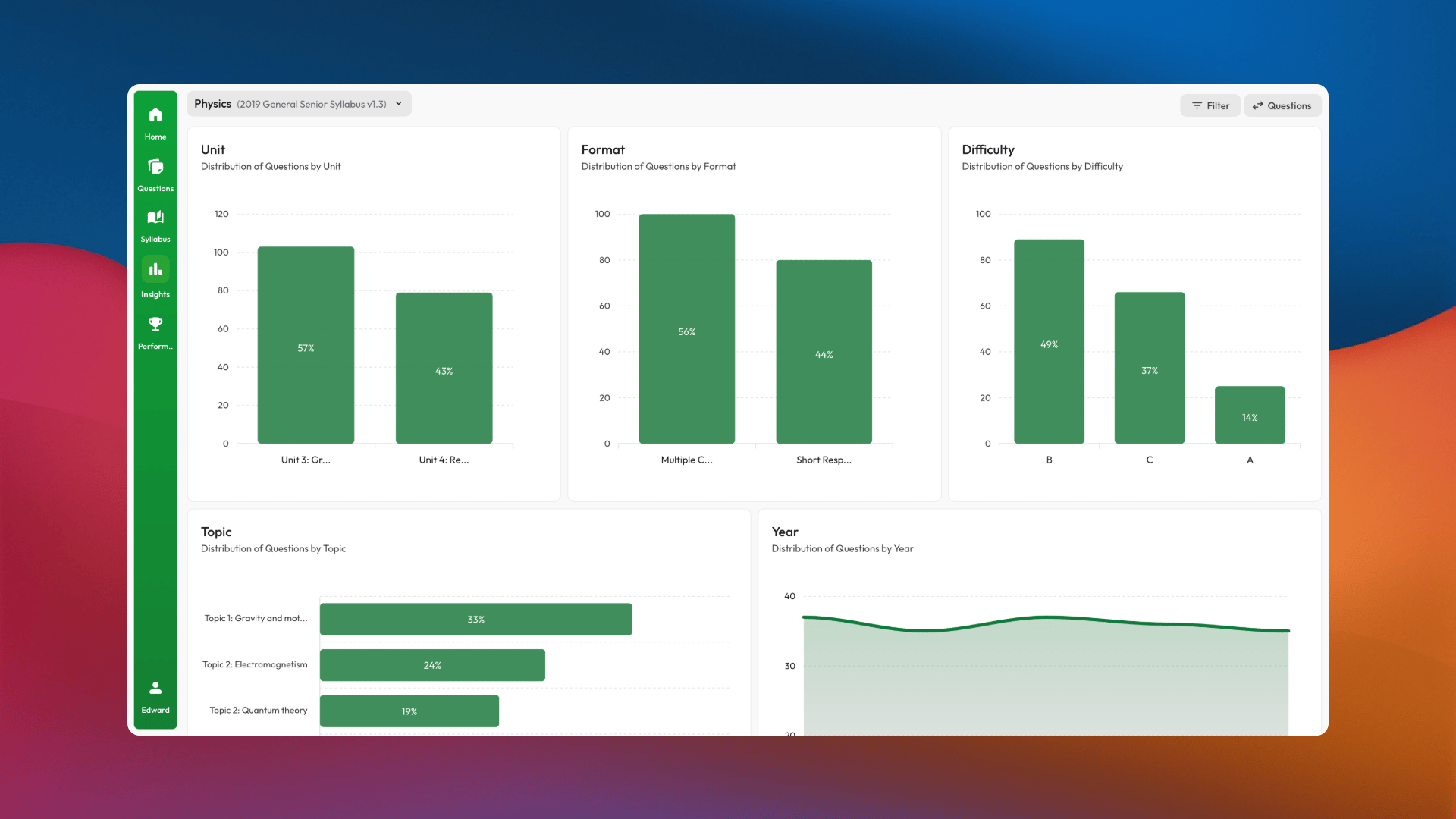
Educators can use Exam Insights to explore QCAA questions, syllabus content, exam trends, and learning resources. Schools can also provide educator access through a School Licence.
 ## Using Exam Insights as an educator
You can explore the core platform as an individual. With school access, an educator can choose teaching subjects and use the features available under the school's licence.
Exam Insights does not currently create classes, assign subjects, or provide a classroom AI-usage dashboard. It complements your existing classroom and learning-management tools rather than replacing them.
## Choosing a school setup model
| Choose managed setup if… | Choose self-managed setup if… |
| ----------------------------------------------------------------- | -------------------------------------------------------- |
| You want Exam Insights to import users and manage licence changes | Your school wants staff to manage users directly |
| You are onboarding a large cohort | You need to add, remove, and reassign access yourself |
| You prefer email-based administration | You have an administrator available to use Manage School |
See [Setting Up Your School](/school_setup/overview) for the full comparison.
## If you are helping with rollout
1. Confirm whether your school uses managed or self-managed setup.
2. Make sure users are added with the correct email address and role.
3. Grant licences when your school is ready for users to access upgraded features.
4. Tell students how to sign in; licence assignment does not send an automatic email.
5. Remind users that they choose their own subjects.
For self-managed schools, see [Manage School Overview](/manage_school/overview). For managed schools, see [Exam Insights-Managed Setup](/school_setup/managed_setup).
## Using Exam Insights as an educator
You can explore the core platform as an individual. With school access, an educator can choose teaching subjects and use the features available under the school's licence.
Exam Insights does not currently create classes, assign subjects, or provide a classroom AI-usage dashboard. It complements your existing classroom and learning-management tools rather than replacing them.
## Choosing a school setup model
| Choose managed setup if… | Choose self-managed setup if… |
| ----------------------------------------------------------------- | -------------------------------------------------------- |
| You want Exam Insights to import users and manage licence changes | Your school wants staff to manage users directly |
| You are onboarding a large cohort | You need to add, remove, and reassign access yourself |
| You prefer email-based administration | You have an administrator available to use Manage School |
See [Setting Up Your School](/school_setup/overview) for the full comparison.
## If you are helping with rollout
1. Confirm whether your school uses managed or self-managed setup.
2. Make sure users are added with the correct email address and role.
3. Grant licences when your school is ready for users to access upgraded features.
4. Tell students how to sign in; licence assignment does not send an automatic email.
5. Remind users that they choose their own subjects.
For self-managed schools, see [Manage School Overview](/manage_school/overview). For managed schools, see [Exam Insights-Managed Setup](/school_setup/managed_setup).